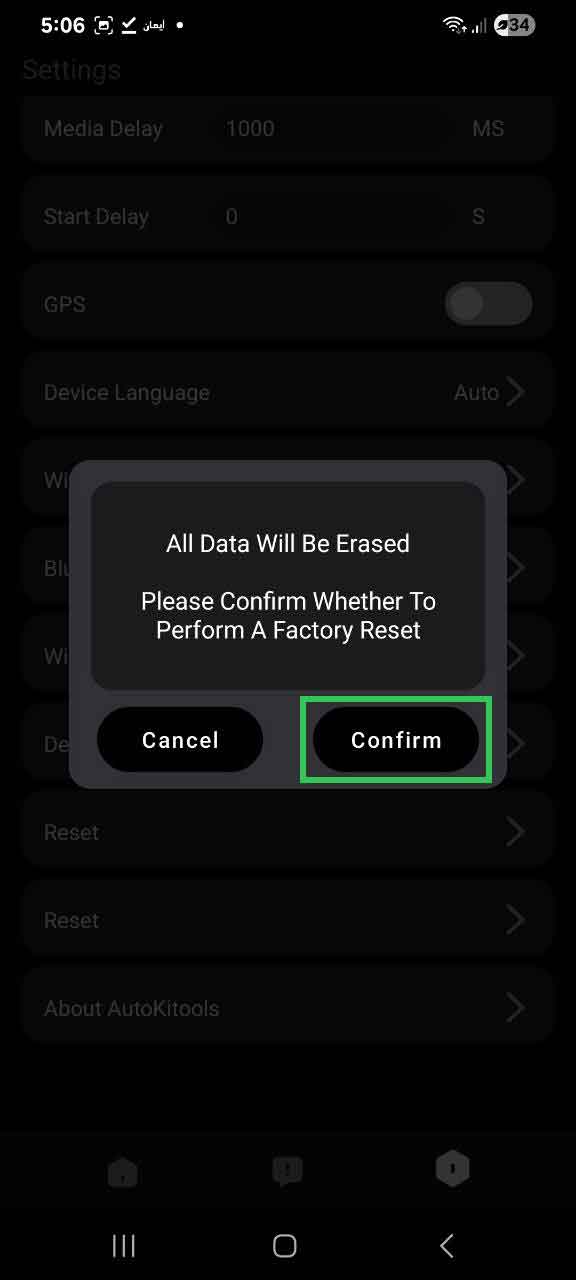
Over time, a dongle can lose its configuration or get stuck in a state where it no longer works as expected. A factory reset clears everything back to default and usually resolves the problem within minutes.
- The dongle is plugged in but the AACP page never appears on the IHU
- The IHU detects the dongle as a USB media device instead of launching Android Auto or Apple CarPlay
- The dongle was paired to a different phone and needs to be re-linked to yours
- Android Auto or Apple CarPlay repeatedly fails to connect even though the dongle is detected
- The dongle becomes unresponsive after an unexpected shutdown or power interruption
Power up the dongle
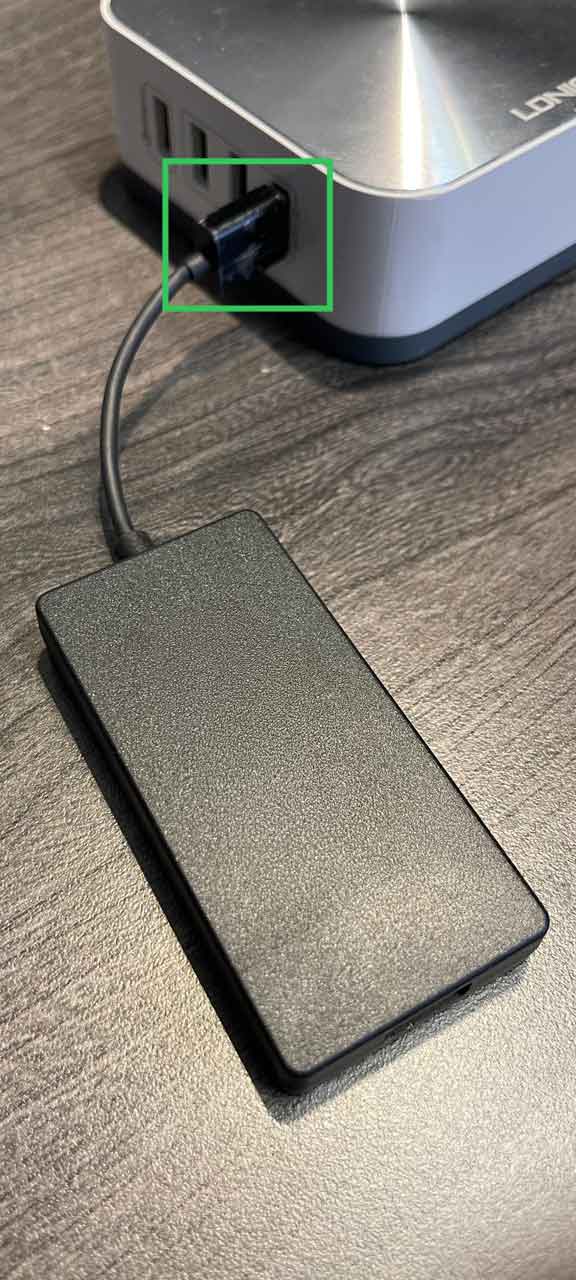
Plug your dongle into any USB-A port that supplies standard power — your IHU's USB-A port, a USB wall charger, or a USB hub will all work. Make sure the connection is secure. The dongle will begin its startup sequence automatically.
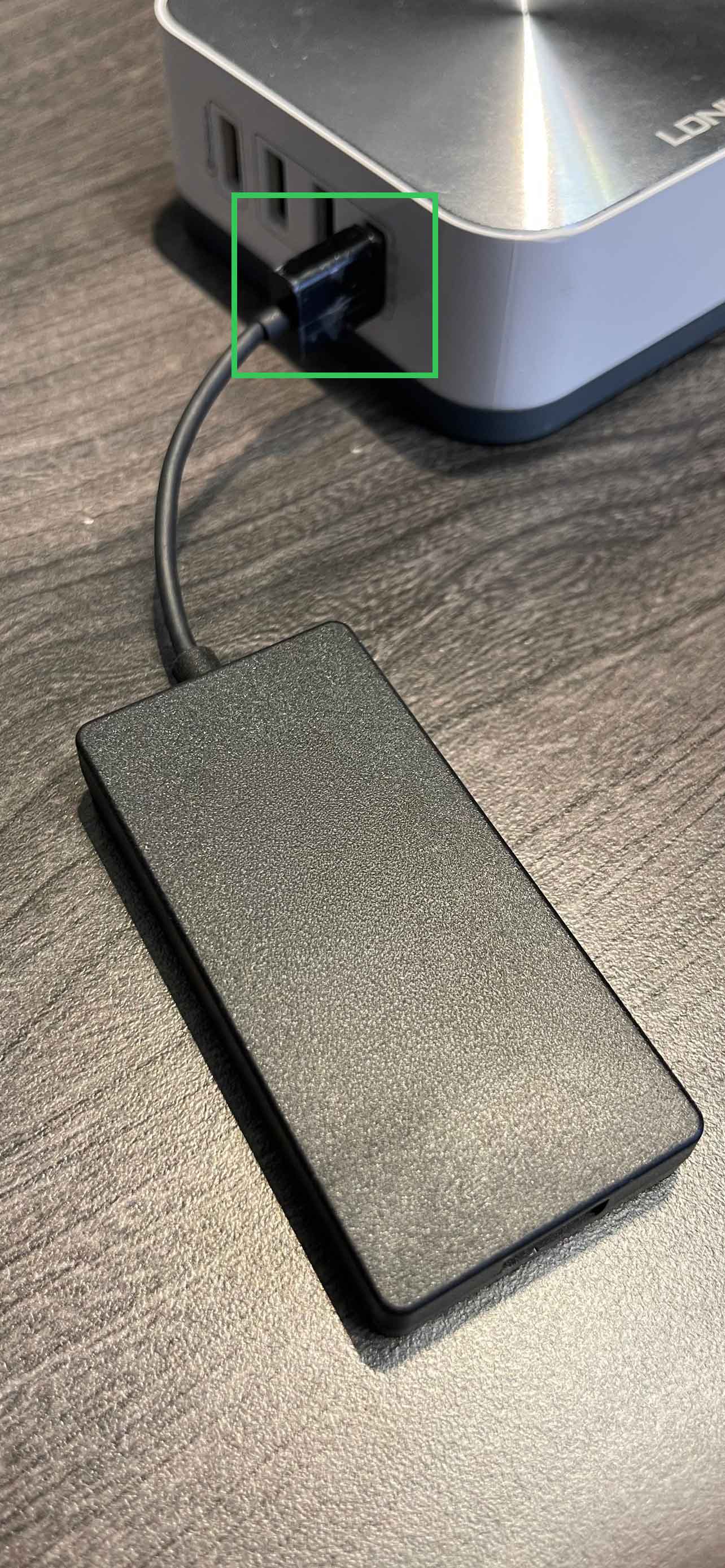
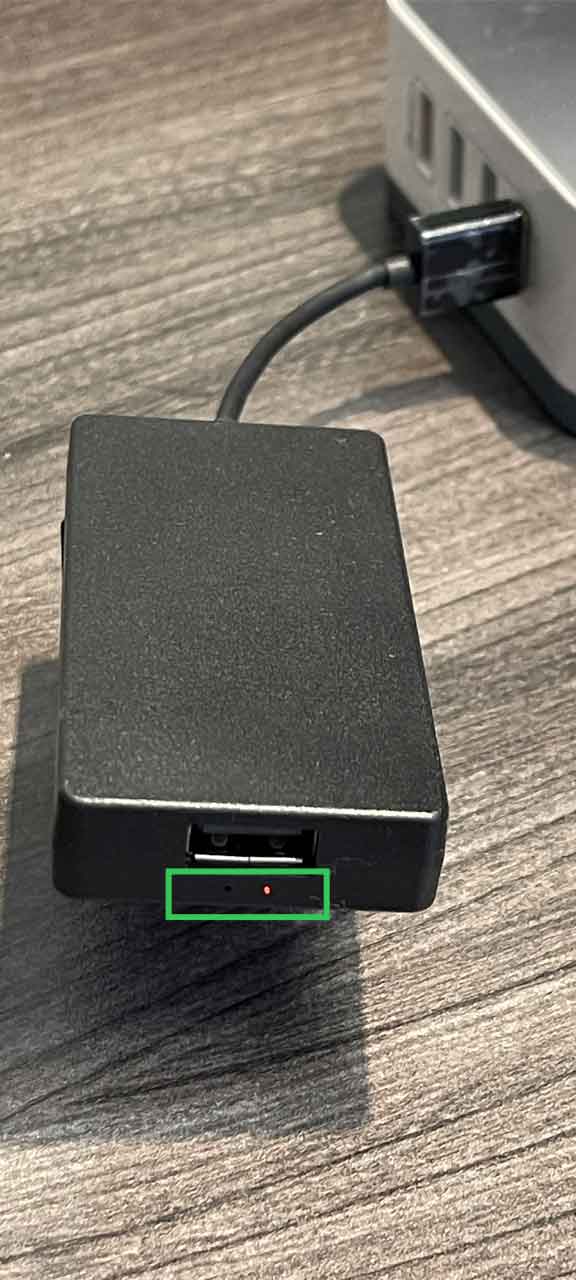
Wait for the red LED
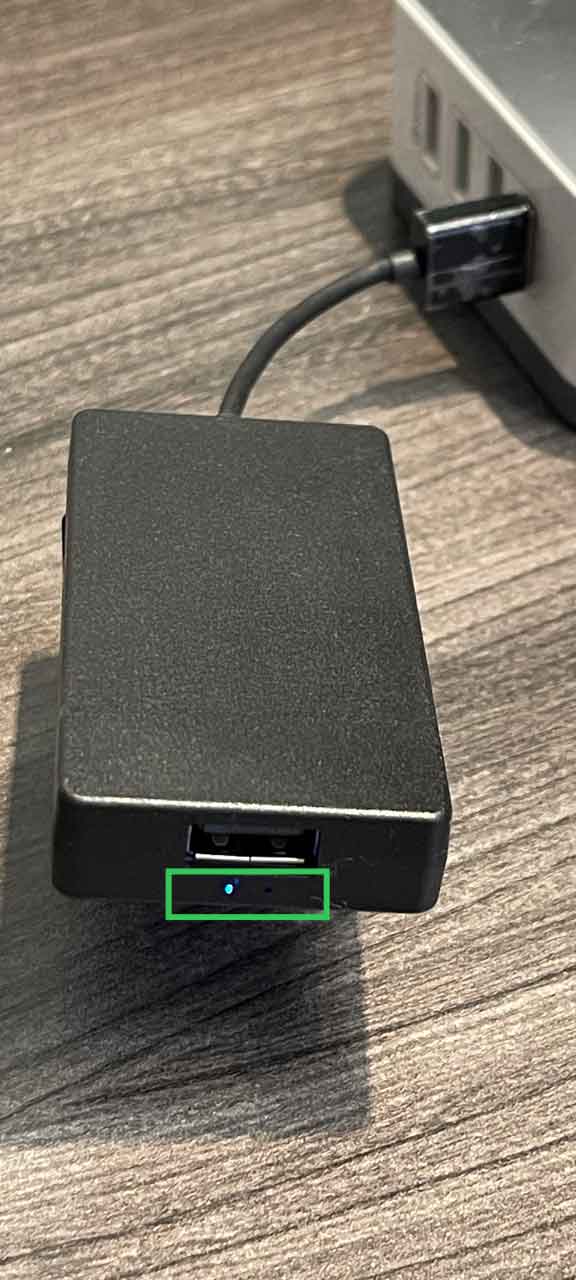
Watch the small LED indicator on the front of the dongle. Wait until it glows a solid, stable red — this confirms the dongle has finished booting and is now broadcasting its own Wi-Fi hotspot. Do not proceed until the red light is steady. It may take up to 30 seconds.
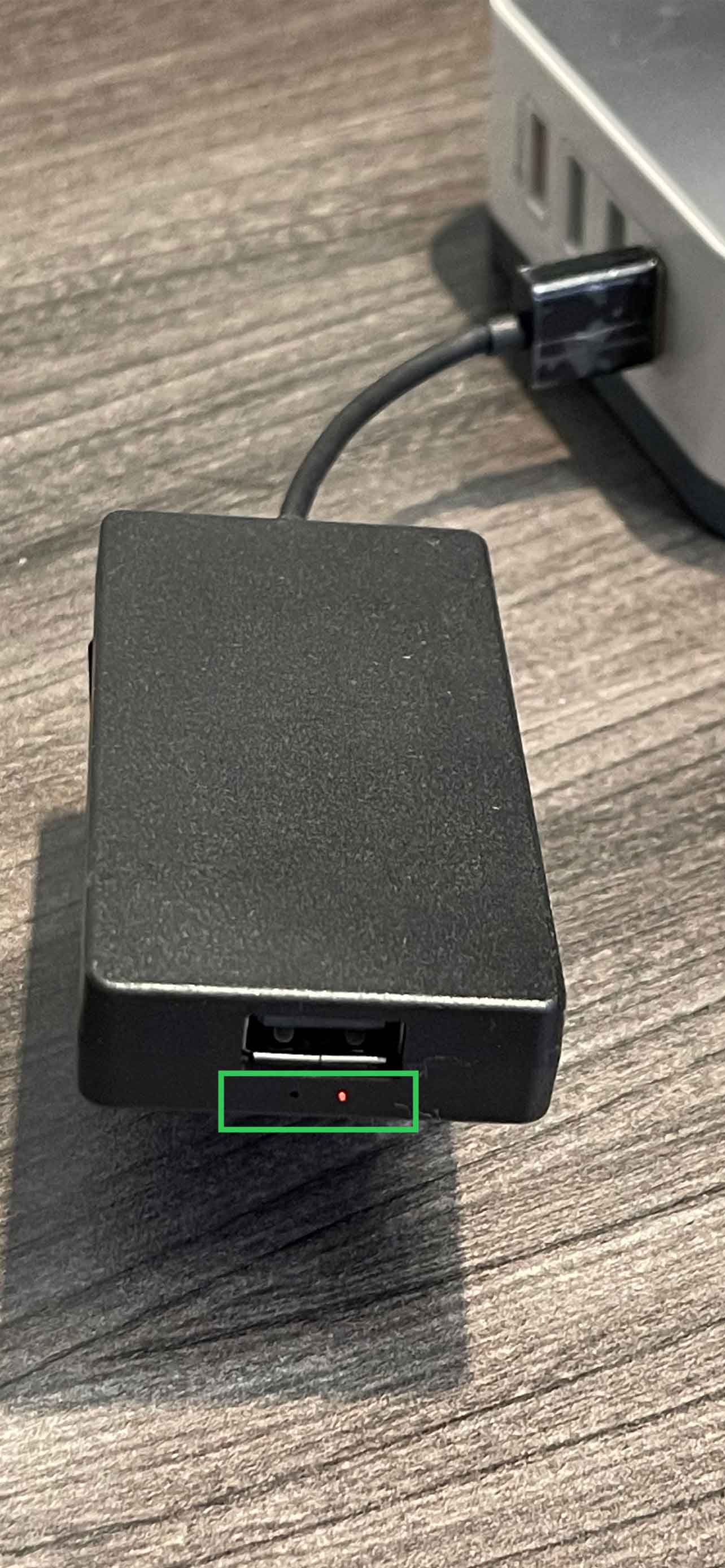
Connect your iPhone to the dongle's Wi-Fi
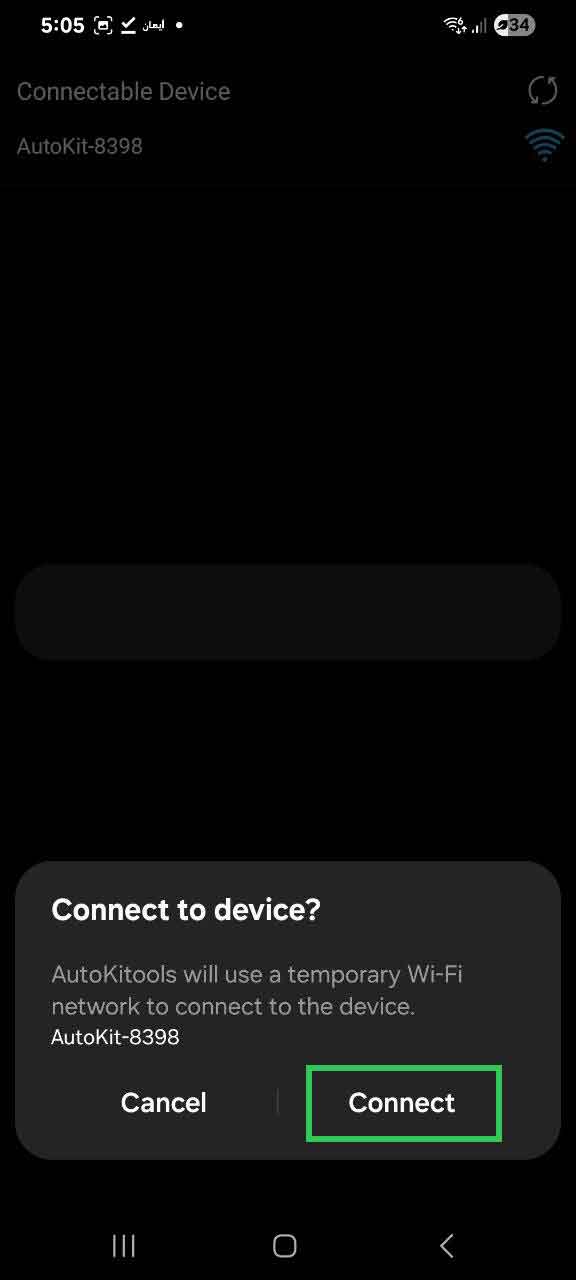
On your iPhone, open Settings → Wi-Fi. Under Other Networks, find the dongle listed as AutoKit- or AutoBox- followed by a 4-digit number (e.g. AutoKit-8398 or AutoBox-8398). The number will differ on your unit. Tap it to begin connecting.
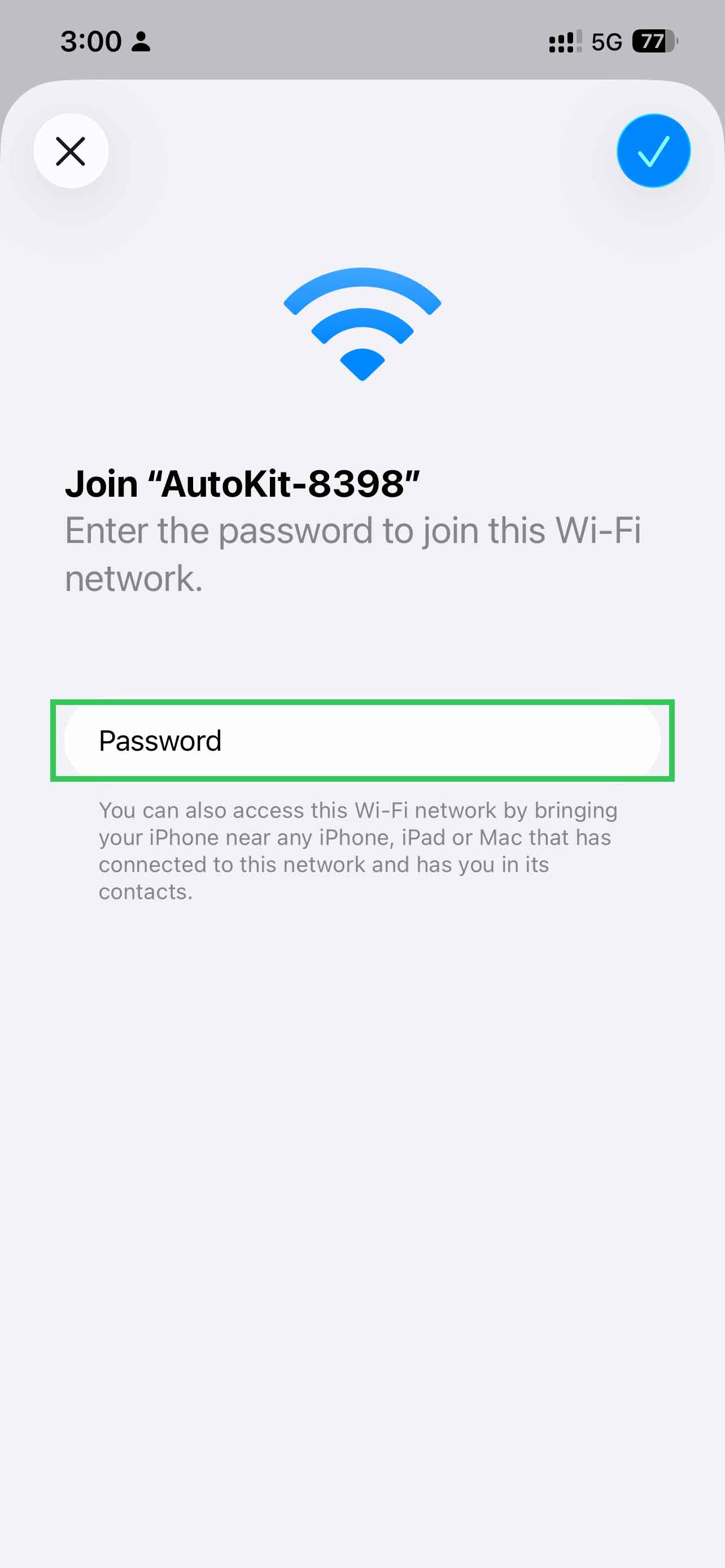
Enter the Wi-Fi password
When the password prompt appears, type 12345678. This is the factory default password used on all AACP dongles. Tap Join to connect.
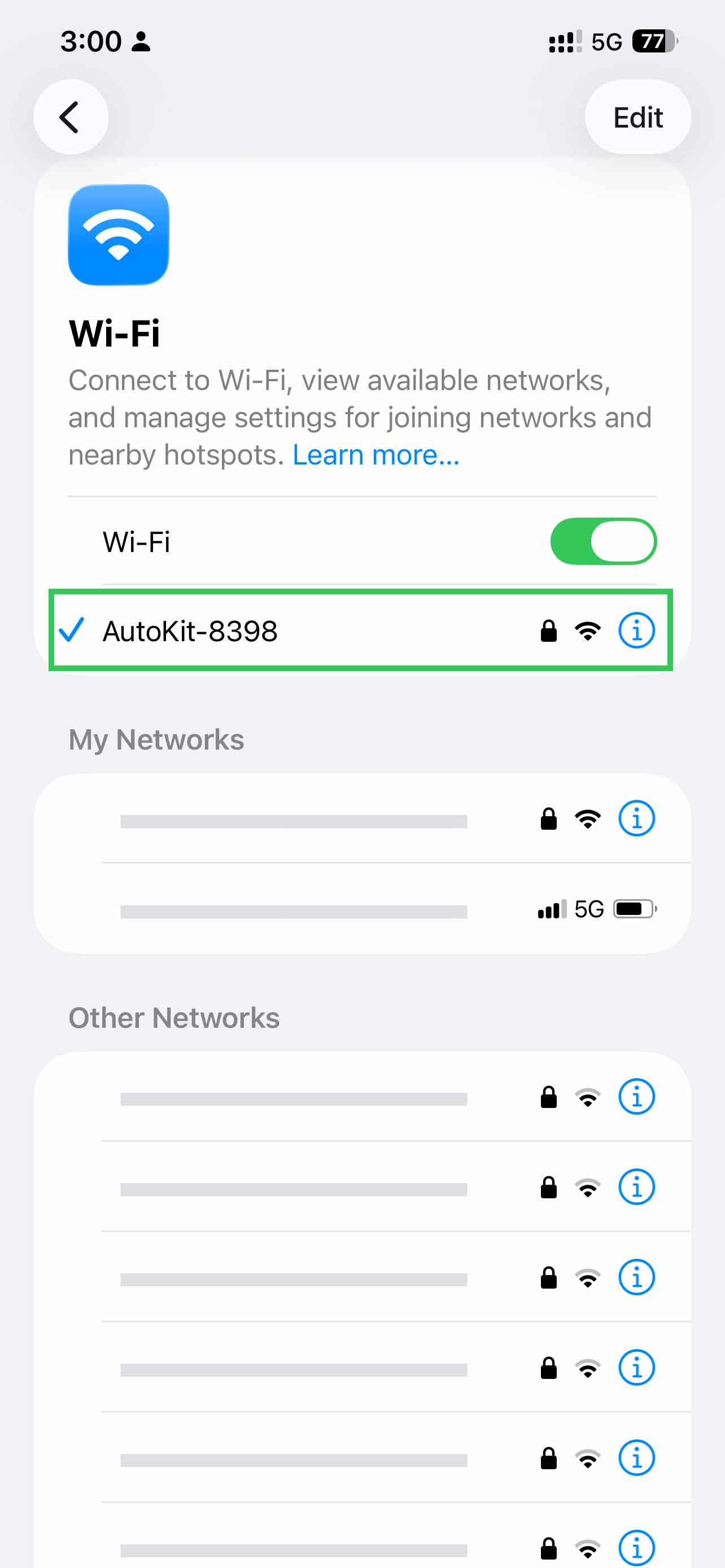
Confirm your iPhone is connected
Once the password is accepted, a blue checkmark will appear next to the AutoKit network at the top of the Wi-Fi list. This confirms your phone has successfully joined the dongle's hotspot.
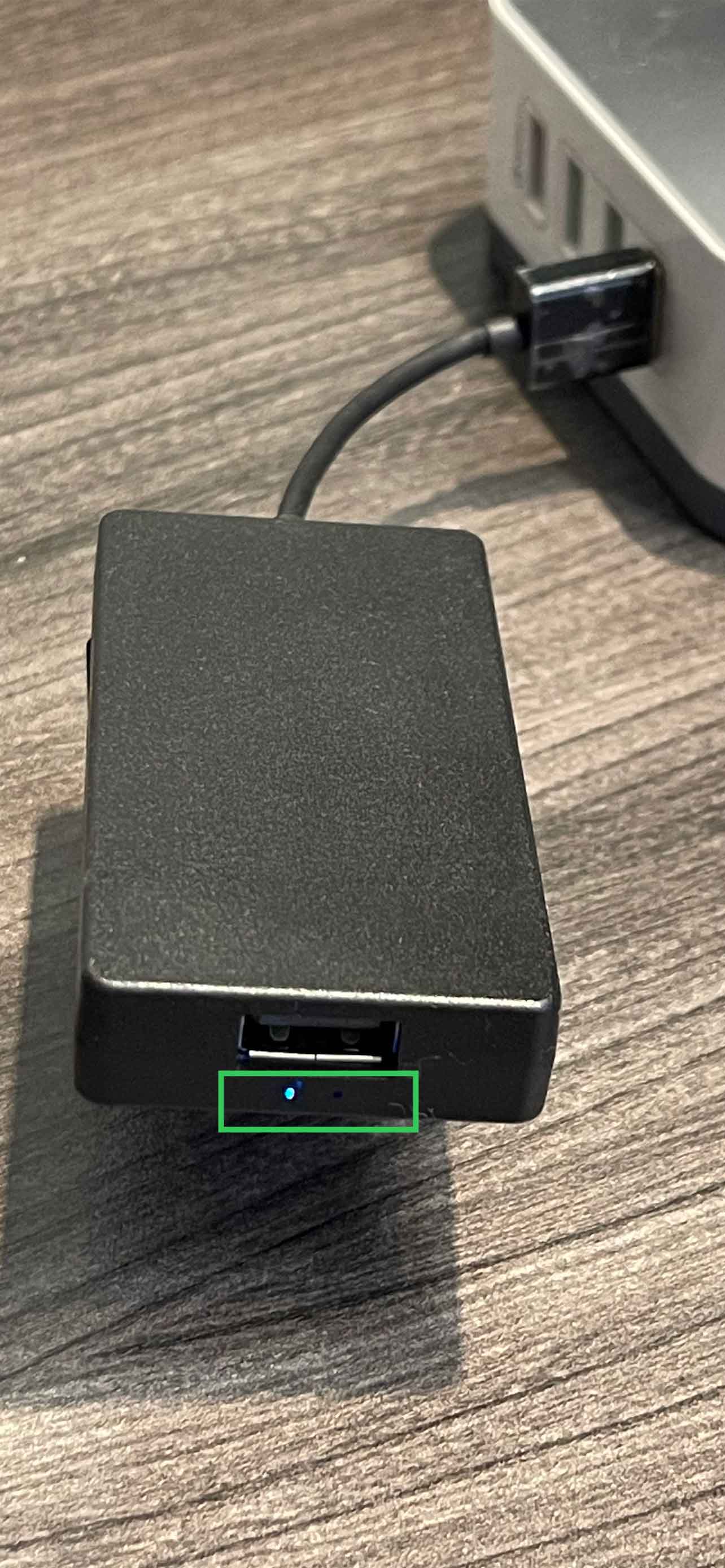
Dongle LED changes to blue or green
Simultaneously, the LED on the dongle shifts from red to blue (or green on some units). This colour change confirms a phone is now connected to the dongle's Wi-Fi and you are ready to access its settings page.
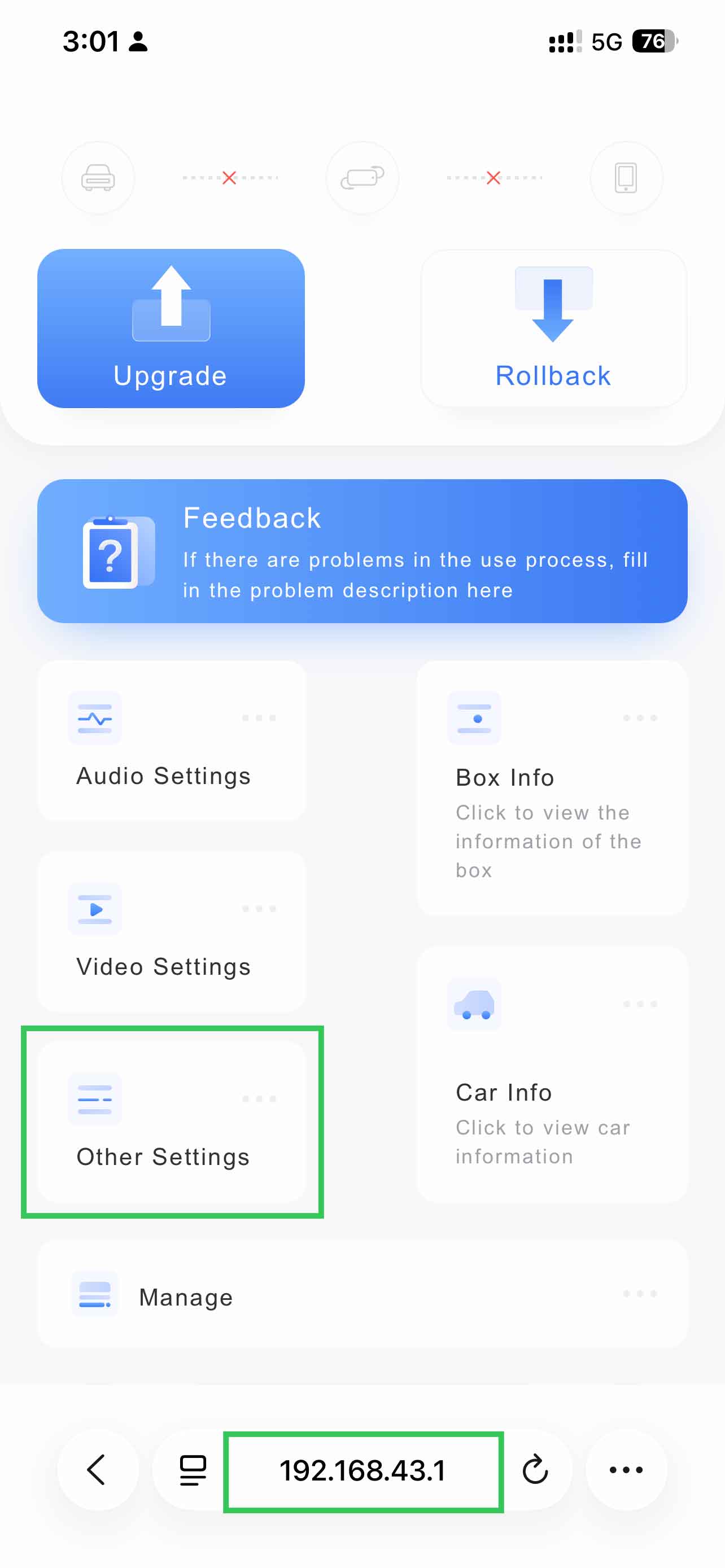
Open the dongle's settings page in Safari
Open Safari and navigate to 192.168.43.1. The dongle's configuration portal will load. On the main screen, scroll down and tap Other Settings.
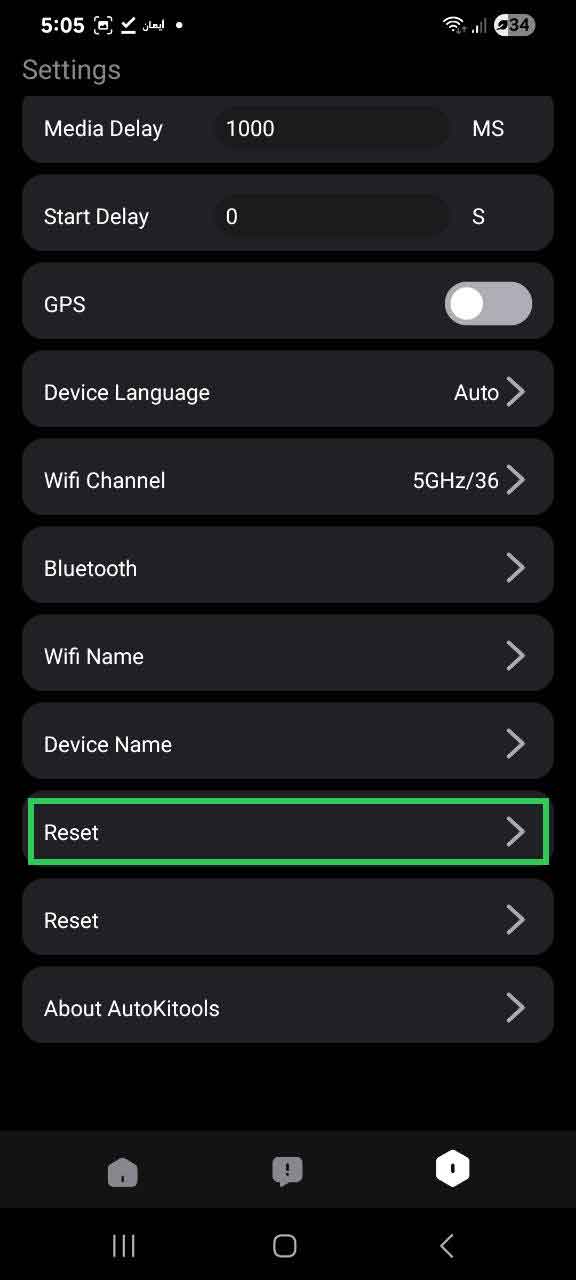
Tap Reset
Inside Other Settings, scroll to the very bottom. You will see a Reset button displayed in red. Tap it to initiate the factory reset.
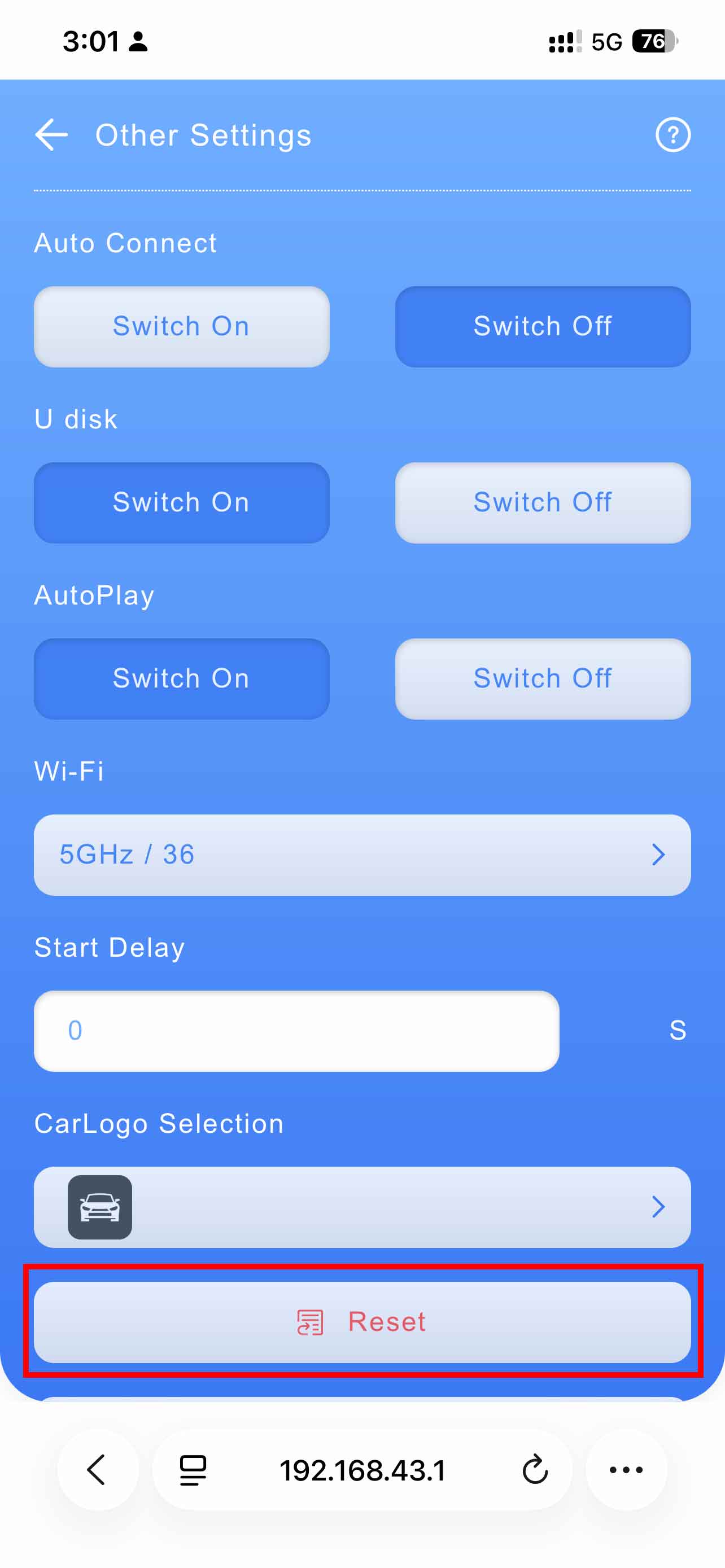
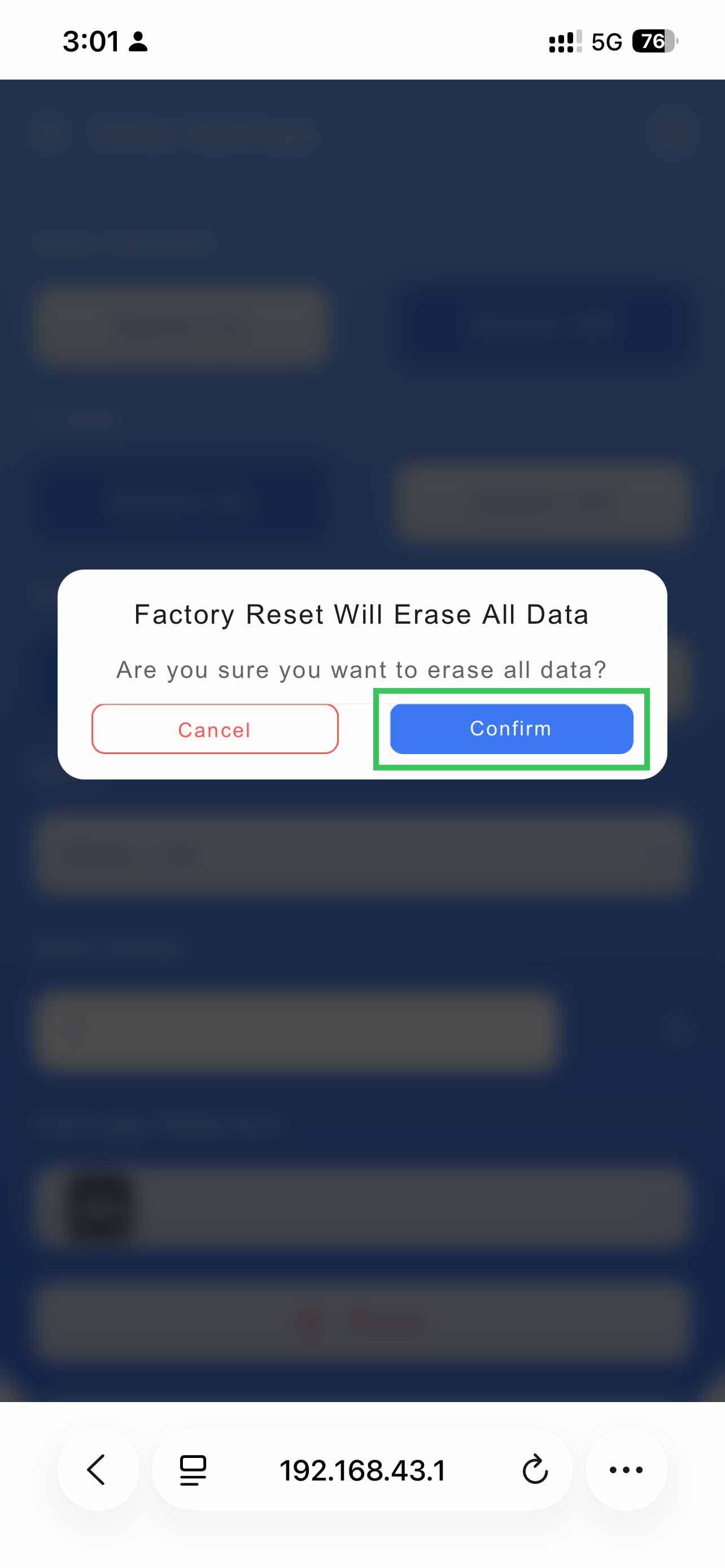
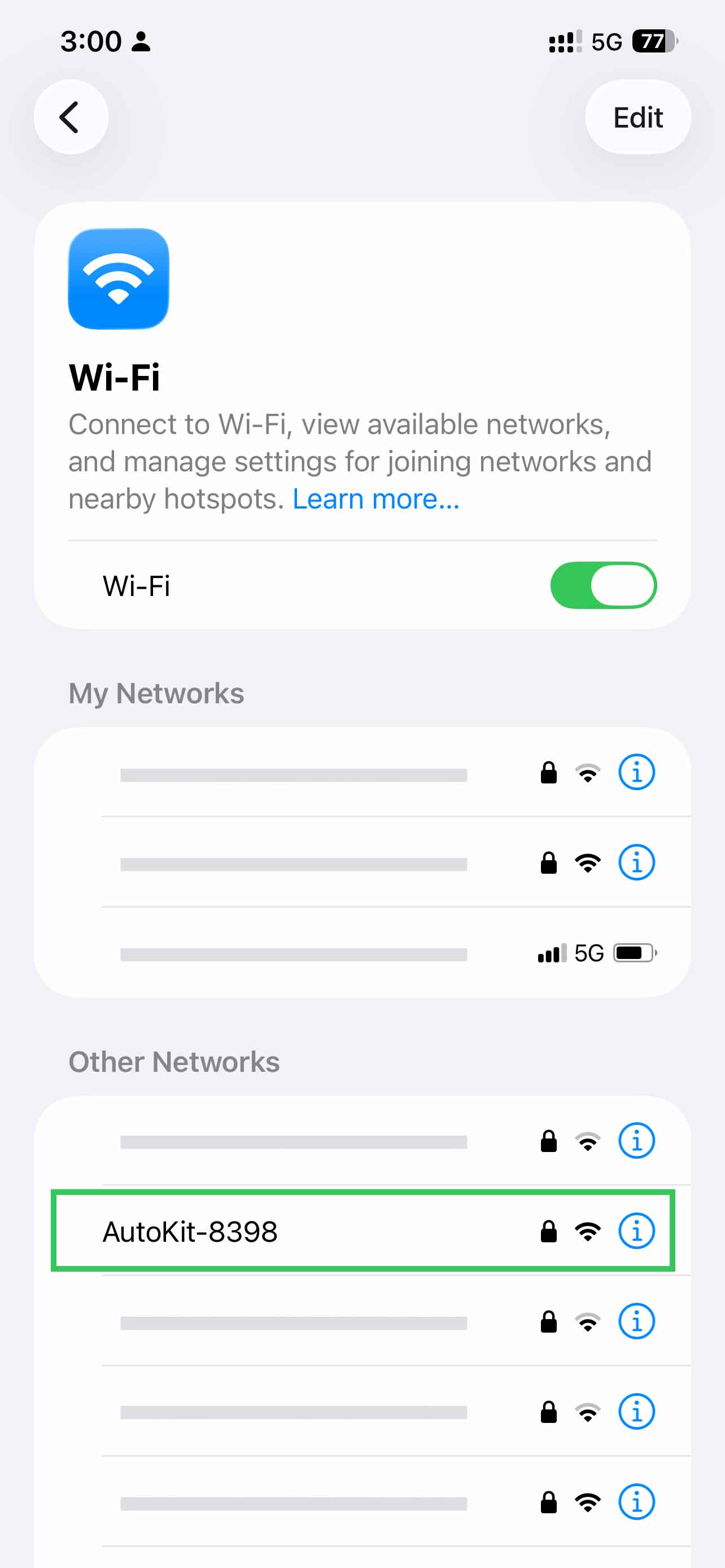
Confirm the factory reset
A dialog will appear: "Factory Reset Will Erase All Data — Are you sure you want to erase all data?" Tap Confirm. The reset begins immediately.